Personal Identification Number (PIN) authorisation is now
available on Pumacard fuel cards, providing greater security and
peace of mind to our customers.
PIN authorisation will be phased in over time as we work with
our merchant partners to upgrade terminal technology. The phased
terminal upgrade will mean that in some cases you will be asked to
enter your PIN and in others you may still be asked to sign a paper
receipt. Eventually you will be able to use PIN authorisation for
most transactions.
The PIN settings available are:
- Mandatory - a PIN must be used on all cards and set prior to
first use
- Optional - PIN authorisation will be active on selected
cards
- Not Permitted - no PIN settings will be active
PIN enablement and set up instructions
To set up PIN authorisation go to the 'Manage PIN Settings'
option in the 'Your Account' online menu, or contact our Customer
Service team on 1300 234 279.
Once your account is PIN enabled the card user will need
to follow the 2 step process outlined below to set up a PIN.
The process requires a mobile phone in order to receive the PEC,
and the entire 2 step process takes less than 3 minutes.
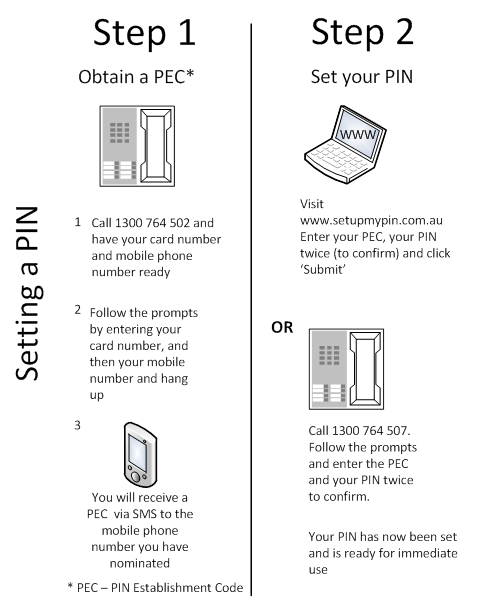
If you do not have a mobile phone you will need
to contact our Customer Service team on 1300 234 279 to
have your PEC set up. Once you receive your PEC please follow step
2 outlined above.
Frequently Asked Questions
1. What is a PIN?
2. What PIN settings
are available?
3. How do I
enable PINs for my account?
4. How do I set a
PIN on my card(s)?
5.
What if I cannot see or update the PIN setting in the 'Your
Account' section?
6.
What happens when I choose an account PIN setting for the first
time?
7. How
long will it take for my PIN to be active?
8.
What happens to existing card PIN settings if I change my account
PIN settings?
9. How do I
know if PINs have been set on my cards?
10. What do
I do if I have forgotten my PIN?
11. What do I do
if my card is locked?
12. Who can I call for
help?
13.
What happens if I have a PIN on my card but the terminal does not
accept PINs?
14. How
do I set up a PIN if I don't have a mobile phone?
1. What
is a PIN?
A Personal Identification Number (PIN) is a personalised
security number that is used to authorise transactions to prevent
fraud and card misuse.
Return to top of
page
2.
What PIN settings are available?
The following PIN Settings are available:
- Mandatory - a PIN must be used on all cards
- Optional - PIN authorisation will be active on selected
cards
- Not Permitted - No PIN settings will be active
Return to top of page
3.
How do I enable PINs for my account?
To set up PIN authorisation:
- Login to your online Pumacard account
- Select the 'Manage PIN Settings' option in the 'Your Account'
section
- Alternatively you can contact our Customer Service team on 1300
234 279 Monday to Friday between 8.45am - 7pm AEST, or between
Monday to Friday 8.45am - 8pm AEDT.
Return to top of page
4. How do I set a PIN
on my card(s)?
If you wish to set a PIN you need to:
- Login to your online Pumacard account
- Select the 'Manage PIN Settings' option in the 'Your Account'
section
- Alternatively you can contact our Customer Service team on 1300
234 279 Monday to Friday between 8.45am - 7pm AEST, or between
Monday to Friday 8.45am - 8pm AEDT.
- Once this has been completed you need to follow the 2 step 'PIN
enablement and set up instructions' outlined above. Please note
that when a PIN has been set on a card as mandatory it must be used
to approve transactions.
Return to top of page
5.What if I cannot see or update the PIN
setting in the 'Your Account' section?
If you cannot see or update the PIN settings the account holder
should contact Customer Service on 1300 234 279 Monday to Friday
between 8.45am - 7pm AEST, or between Monday to Friday 8.45am - 8pm
AEDT.
Return to top of
page
6. What happens when I choose an account PIN
setting for the first time?
The chosen account PIN setting will be applied to the card(s)
linked to your account. Please note that cards with a PIN setting
of mandatory cannot be used until a PIN has been set.
Return to top of
page
7. How
long will it take for my PIN to be active?
When PINs are set up or when any changes are made the change
will take place within 24 hours.
Return to top of
page
8. What happens to existing card PIN settings
if I change my account PIN settings?
If PINs are not required:
- Login to your online Pumacard account
- Select the 'Manage PIN Settings' option in the 'Your Account'
section and highlight 'Not permitted' in 'Account PIN settings'
drop down menu
- By selecting this option at an account level all card PIN
settings will be invalid and will default to 'Not Permitted'.
- If your account PIN setting is changed to 'Mandatory' or
'Optional' cards will retain their existing PIN settings. All
changes will be reflected within 24 hours.
Return to top of
page
9. How
do I know if PINs have been set on my cards?
Account holders can choose to receive email notifications when a
card holder attempts to set a PIN. Account holders can enable email
notifications by visiting the 'Manage PIN Settings' page in the
'Your Account' section of your online account.
Alternatively you can contact our Customer Service team on 1300
234 279 Monday to Friday between 8.45am - 7pm AEST, or between
Monday to Friday 8.45am - 8pm AEDT.
Return to top of page
10. What do I do if I have forgotten my PIN?
You can set a new PIN by:
- Calling 1300 764 502. The mobile number registered for the card
must be provided in order to receive a SMS containing further
instructions.
- If you have forgotten the mobile number originally provided, or
changed your mobile number you can update it via your online
account in the 'Update Card Details' page under the 'Your Cards'
section
Return to top of
page
11.
What do I do if my card is locked?
If you have entered your PIN incorrectly three times your card
will be locked. Call 1300 764 502 to unlock your card and set a new
PIN.
Return to top of
page
12. Who can I
call for help?
A Pumacard representative will be on hand to assist with any
PINs related queries or questions on 1300 139 148 Monday to Friday
between 8.45am - 7pm AEST, or between Monday to Friday 8.45am - 8pm
AEDT.
Return to top of
page
13. What happens if I have a PIN on my card
but the terminal does not accept PINs?
- If the card has a signature panel you will be asked to approve
the transaction by signature.
- If the card does not have a signature panel you will need to
press the Enter button to proceed
Return to top of
page
14. How do I set up a PIN if I don't have a mobile
phone?
Customers with no mobile phones will be directed to call
Customer Service on 1300 139 148 to have their PEC set up. Once
customers receive a PEC they can follow step 2 of the PIN set up
process.
Return to top of
page